Quickstart for remote Claude Code agents on Depot
Run Claude Code agents in Depot's remote agent sandboxes: a secure, isolated environment in the cloud, where you can launch, resume, and share coding sessions.
Prerequisites
You'll need a Depot account.
Install the Depot CLI
Install the Depot CLI on your machine to configure and launch remote sandboxes.
-
macOS
Install the Depot CLI with Homebrew:
brew install depot/tap/depot -
Linux
Install the Depot CLI with the installation script:
curl -L https://depot.dev/install-cli.sh | sh -
All platforms
Download the binary file for your platform from the Depot CLI releases page in GitHub.
Get and set your Anthropic credentials
To run Claude Code in remote agent sandboxes, configure your Anthropic credentials. You have two options:
- Claude Code token (Max plan)
- Anthropic API key
Use your Claude Code token with Anthropic Max plan (recommended)
-
Use the
claudeCLI to generate a new OAuth token:claude setup-tokenThis will output a token that you can copy to use in the next step.

-
Set the token as a secret in your Depot organization:
depot claude secrets add CLAUDE_CODE_OAUTH_TOKEN --value <"claude-code-token">
Use your Anthropic API key
-
Generate an API key in the Anthropic web console. Learn how to get an API key in the Claude Docs.
-
Set the API key as a secret in your Depot organization:
depot claude secrets add ANTHROPIC_API_KEY --value <"anthropic-api-key">
Access your Git repositories
You can work with public and private Git repositories in your remote agent sandboxes. To use private Git repositories, either install the Depot Code app into your GitHub organization or set your Git credentials as secrets in your Depot organization.
Install the Depot Code app into your GitHub organization
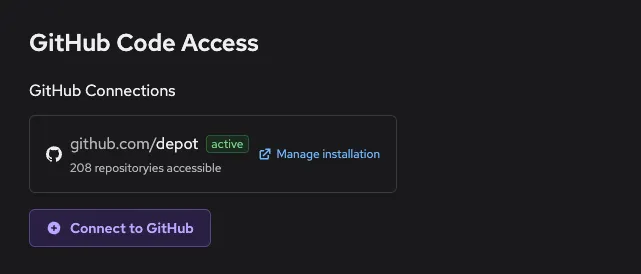
To grant remote agent sandboxes access to clone and push changes to your private GitHub repositories, install the Depot Code app into your GitHub organization:
- Log in to your Depot dashboard.
- Click Settings.
- In the GitHub Code Access section, click Connect to GitHub.
- Follow the prompts to add Depot Code to your GitHub organization.
Grant access outside of GitHub
If you don't want to use the Depot Code app, you can set your Git credentials as secrets in your Depot organization to allow changes to your private repositories. The value of GIT_CREDENTIALS must be one of the following:
- A token, such as a personal access token. Depot uses
x-tokenas the username and the token you specify as the password. - A user name and password in the format: username@password.
To set your Git credentials as secrets, run the following command:
depot claude secrets add GIT_CREDENTIALS --value <"your-credentials">Launch your first remote agent sandbox
To create a remote agent sandbox, run the depot claude command. For example:
depot claude \
  --session-id feature-auth \
  --repository https://github.com/foo/bar \
  --branch main \
  "Give me a general summary of this repository"

✓ Claude sandbox started!
  Session ID: feature-auth
Link: https://depot.dev/orgs/12345678911/claude/feature-authThis command tells the Depot control plane to start a new agent sandbox for Claude Code. The command returns a URL to the session inside of Depot where you can follow the output.
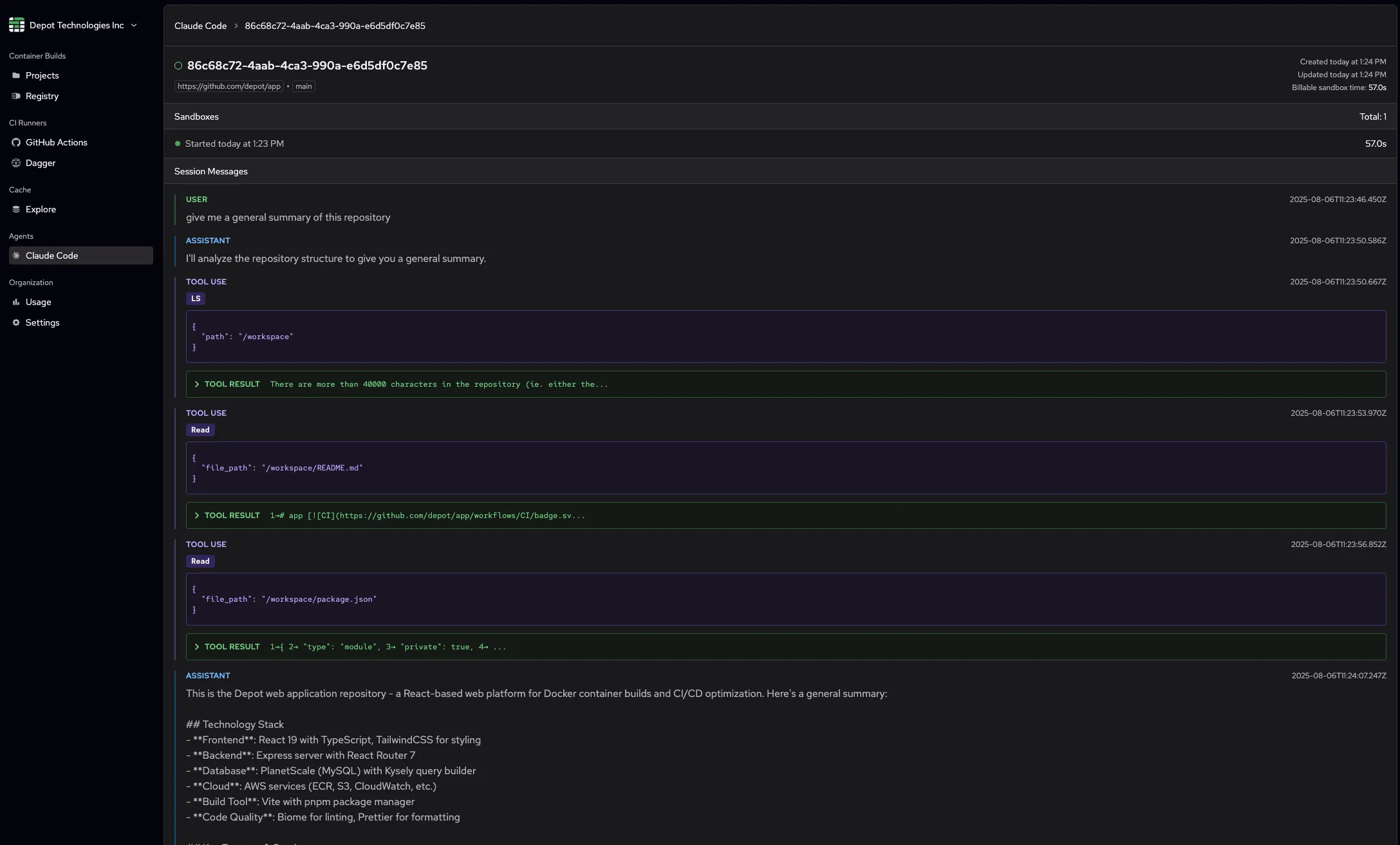
And that's it! Your Depot organization is set up to use remote agent sandboxes for Claude Code.
Manage sessions using the Depot dashboard
In addition to using the CLI, you can also manage your remote agent sandboxes directly from the Depot dashboard:
- Log in to your Depot dashboard.
- To view all your sessions, click Claude Code.
- From this view, you can:
- Resume existing sessions: Click on any session to view its details, then use the prompt input at the bottom to resume the session with a new message.
- Start new sessions: Click the New sandbox button to launch a fresh Claude Code session in a new remote agent sandbox. You can select a repository, branch, and provide an initial prompt.
Next steps
Try the following with your remote agent sandbox:
- Work with different Git repositories that your Git credentials or Depot Code app have access to.
- Switch between branches using the
--branchflag. - Resume a session using the
--resumeflag or via the Depot dashboard. - Fork a new session from an existing session using the
--resumeand--fork-sessionflags together.
Run depot claude --help or check the CLI reference to see all the available command options.